Learn how to configure SEO Magic’s main behavior: Gemini API key, site topic, language, SEO plugin integration, Autopilot, Google APIs (PRO), ACF integration (PRO) and import/export options.
Overview: how the settings are organized
The Settings screen in SEO Magic is divided into several sections:
- General Settings – core plugin behavior (Free).
- Autopilot – background automation to fill missing metadata and media fields (Free).
- Google API Settings – centralized configuration for advanced Google services (PRO).
- ACF Integration – choose which ACF fields are used as AI context (PRO).
- AI Model Rules (Advanced) – optional rules to use different AI models based on conditions.
- Import / Export Settings – backup and migrate your configuration.
This article explains each section and how they work together.
General Settings (Free)
Google Gemini API Key
Field: Google Gemini API Key + Test Connection
Purpose: main key for all AI generations.
- SEO Magic uses this key to call Google Gemini models.
- Without a valid key, the plugin cannot generate metadata, alt text or content.
- You can get a key from Google AI Studio.
How to set it up:
- Paste your key in the field.
- Click Test Connection.
- Wait for the success or error message.
If the test fails:
- Check that the key is complete (no extra spaces).
- Make sure the Gemini API is enabled for that key.
- Verify that your server can make outgoing HTTPS requests (some firewalls block them).

Main Site Topic
Field: Main Site Topic
A short description of what your site is about.
Example:
“Discover, discuss and analyze the best movies and TV shows.”
This text is sent to the AI as global context and helps the model:
- Understand your niche and typical audience.
- Choose more relevant angles and keywords.
- Keep titles and descriptions aligned with your topic.
Keep it short, but specific.

Default AI Model
Field: Default AI Model (e.g. Gemini 2.0 Flash (Recommended))
This is the model SEO Magic will use when:
- No AI Model Rule applies to the current content.
- A tool does not explicitly request a different model.
If you’re unsure what to pick, Gemini 2.0 Flash is a solid default (fast and good quality).

Generation Language
Field: Generation Language (e.g. Spanish, English)
Controls the default output language for AI generations:
- Titles, descriptions, alt text and content will be generated in this language by default.
- Some tools let you override the language in the prompt, but this is the global setting.
Set this to the main language of your website.

SEO Plugin Integration
Field: SEO Plugin Integration (e.g. All in One SEO (AIOSEO), Yoast, Rank Math)
Here you choose which SEO plugin SEO Magic should sync with:
- Only active SEO plugins are listed.
- SEO Magic maps its internal fields (title, description, social tags) to the correct meta keys of that plugin.
Result:
- Metadata generated by SEO Magic appears inside your SEO plugin.
- You can keep using your usual SEO plugin UI to review or adjust titles/descriptions.

Scan Content Types
Field: Scan Content Types
A list of post types where you decide which content SEO Magic should handle, for example:
- Posts
- Pages
- Custom post types (e.g. “Movies”, “Courses”, “Products”, etc.)
Only the selected types will:
- Be included in coverage metrics on the Dashboard.
- Appear in the Posts / Metadata SEO tools.
- Be scanned by Autopilot (if enabled).
If you want SEO Magic to ignore certain content types, just leave them unchecked.

Data Cleanup
Field: Delete all plugin data upon deactivation
- When enabled, SEO Magic will delete its settings, logs and internal scores when the plugin is deactivated.
- This is irreversible.
If you only plan to deactivate the plugin temporarily, or want to keep historical data, leave this turned off.

Autopilot (Free)
The Autopilot section controls an optional background task that completes missing metadata and media fields automatically according to your rules.
Autopilot is available in both the Free and PRO versions.
PRO simply adds more tools that benefit from having all that metadata filled.
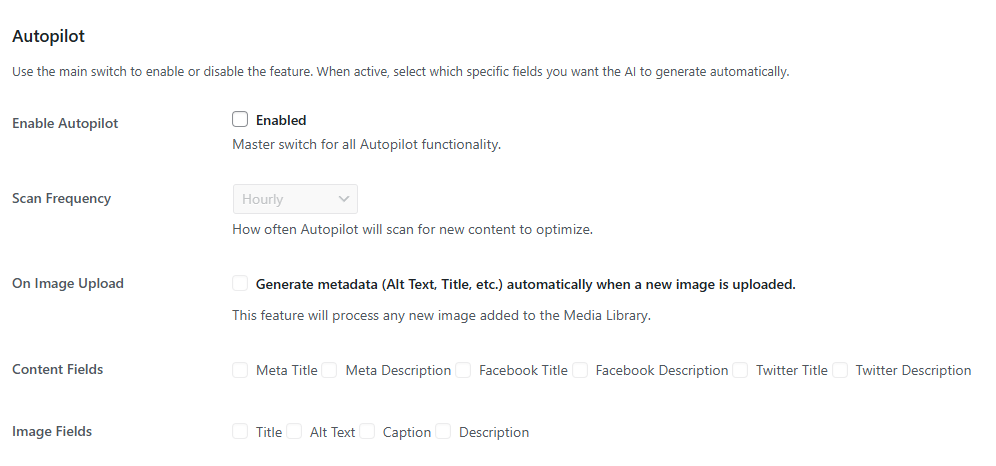
Enable Autopilot
Field: Enable Autopilot
- Master switch for all Autopilot features.
- If this is disabled, no background generation will run.
Scan Frequency
Field: Scan Frequency (e.g. Hourly)
Defines how often Autopilot scans the site for content to optimize:
- Every hour
- Several times per day
- Once per day (depending on the options you choose)
SEO Magic relies on WordPress cron (wp-cron) or your server cron to run these scans. Make sure scheduled tasks are running correctly on your site.
On Image Upload
Field: On Image Upload – Generate metadata (Alt Text, Title, etc.) automatically when a new image is uploaded.
When enabled:
- Every new image uploaded to the Media Library is processed automatically.
- SEO Magic generates:
- Title
- Alt Text
- Caption
- Description
using the file name, site topic and any available context.
Content Fields (Autopilot)
Field group: Content Fields
Here you decide which post-level SEO fields Autopilot is allowed to fill:
- Meta Title
- Meta Description
- Facebook Title
- Facebook Description
- Twitter Title
- Twitter Description
Only the checked fields are generated automatically.
Existing values are usually preserved; Autopilot focuses on filling missing fields.
Image Fields (Autopilot)
Field group: Image Fields
Here you decide which media fields Autopilot may complete:
- Title
- Alt Text
- Caption
- Description
Again, only the checked fields are filled, and existing values are respected.
How Autopilot works internally
- At each scheduled run, Autopilot scans the selected content types and finds items with missing fields in the Content Fields / Image Fields that you enabled.
- For each item, SEO Magic prepares a prompt using:
- The Main Site Topic,
- The current content or media info,
- The Generation Language,
- And the Default AI Model (or a model from AI Model Rules, if configured).
- It sends the request to Gemini and saves the generated values into the appropriate metadata or media fields.
You can turn Autopilot off at any time if you prefer a fully manual workflow.
Google API Settings (PRO)
Available in the PRO version. It centralizes Google API keys for advanced features such as Auto-Linking, Backlink Audit and Site Health Audit.
Google Search API Key
Field: Google Search API Key
Used for:
- Auto-Linking Assistant (discover external sources and potential link targets).
- Backlink Audit (Safe Browsing checks).
- Site Health Audit (PageSpeed requests).
In your Google Cloud project, make sure you enable:
- Custom Search API
- Safe Browsing API
- PageSpeed Insights API

Programmable Search Engine ID
Field: Programmable Search Engine ID
- Required for the Auto-Linking Assistant.
- SEO Magic uses this ID to query your Programmable Search Engine (CSE) and find relevant external links.

Google OAuth Client ID & Client Secret
Fields: Google OAuth Client ID, Google OAuth Client Secret
These are required for the Backlink Audit:
- They allow SEO Magic to connect to your Google Search Console account via OAuth.
- The plugin retrieves backlink data from Search Console to group and analyze it.
You must add a redirect URI like this in your Google Cloud OAuth credentials:
https://your-site.com/wp-admin/admin.php?page=smg-backlink-audit
(Replace your-site.com with your actual domain.)
If the redirect URI is missing or incorrect, the OAuth flow will fail.

ACF Integration (PRO)
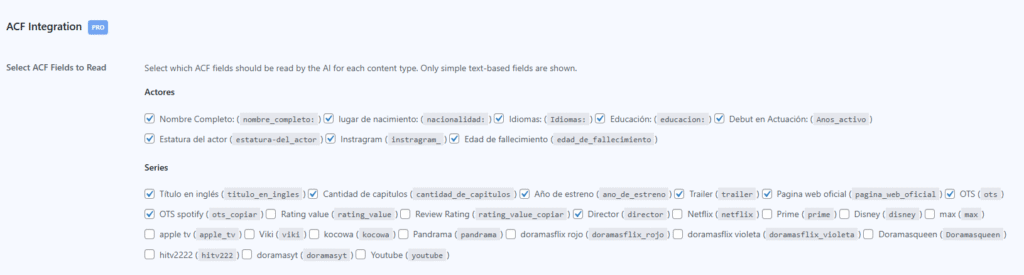
The ACF Integration section lets PRO users choose which Advanced Custom Fields should be read by the AI as extra context.
Typical use cases:
- For a “Person” custom post type: fields like “Full name”, “Short bio”, “Social profile URL”.
- For a “Movie” or “Product” type: fields like “Release year”, “Brand”, “Platform”, “Rating”, etc.
Key details:
- Only simple text-based ACF fields are listed (plain text, textarea, URL…).
- This keeps prompts light and avoids sending complex data structures.
When you select fields for a post type:
- SEO Magic includes those values in the context when generating content, metadata and alt text.
- The AI gets a deeper, structured understanding of each item.
AI Model Rules (Advanced)
The AI Model Rules panel lets you define conditional rules, for example:
“If post type is ‘Product’, use Model A; if category is ‘News’, use Model B.”
- Rules are evaluated in order.
- The first matching rule is used.
- If no rule matches, SEO Magic falls back to the Default AI Model.
You can leave this empty (no rules) to keep the configuration simple, or add rules later if you need finer control.

Import / Export Settings
This section is available in both Free and PRO.
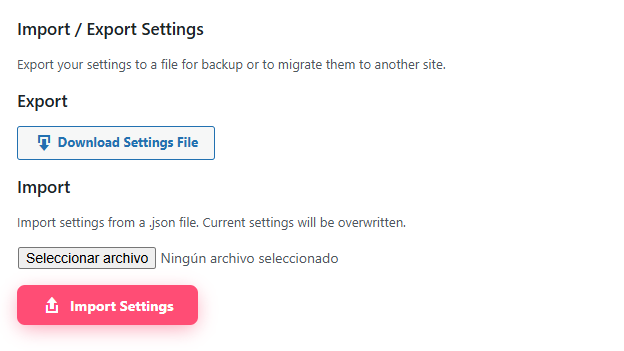
Export – Download Settings File
- Click Download Settings File to export your current configuration as a
.jsonfile. - This file includes your SEO Magic settings (not your content).
Useful for:
- Taking a backup before big changes.
- Reusing the same configuration on multiple sites.
Import – Apply a saved configuration
- Use the Import button to upload a
.jsonfile previously exported from SEO Magic. - When you click Import Settings, your current settings will be overwritten.
Always review the Settings screen after an import, especially if the file came from a different site (it may contain API keys or URLs specific to that environment).