Website speed has become one of the most important technical foundations of modern SEO. A slow website can frustrate visitors, increase bounce rates, reduce conversions, and make it harder for search engines to crawl and understand your content.
For WordPress site owners, this matters even more. Themes, plugins, images, scripts, tracking tools, page builders, and external integrations can all make a website heavier over time. The good news is that many speed improvements are practical, affordable, and easy to start.
At SEO Magic, we believe SEO should not feel mysterious. A faster website is not only better for Google. It is better for real people.
Why Website Speed Matters for SEO
Google’s Core Web Vitals measure real user experience across three key areas: loading performance, interactivity, and visual stability. Google recommends strong Core Web Vitals for Search success and for a better user experience overall.
The three main metrics to watch are:
- Largest Contentful Paint, or LCP: how quickly the main content appears.
- Interaction to Next Paint, or INP: how responsive the page feels when users interact with it.
- Cumulative Layout Shift, or CLS: how stable the page layout is while loading.
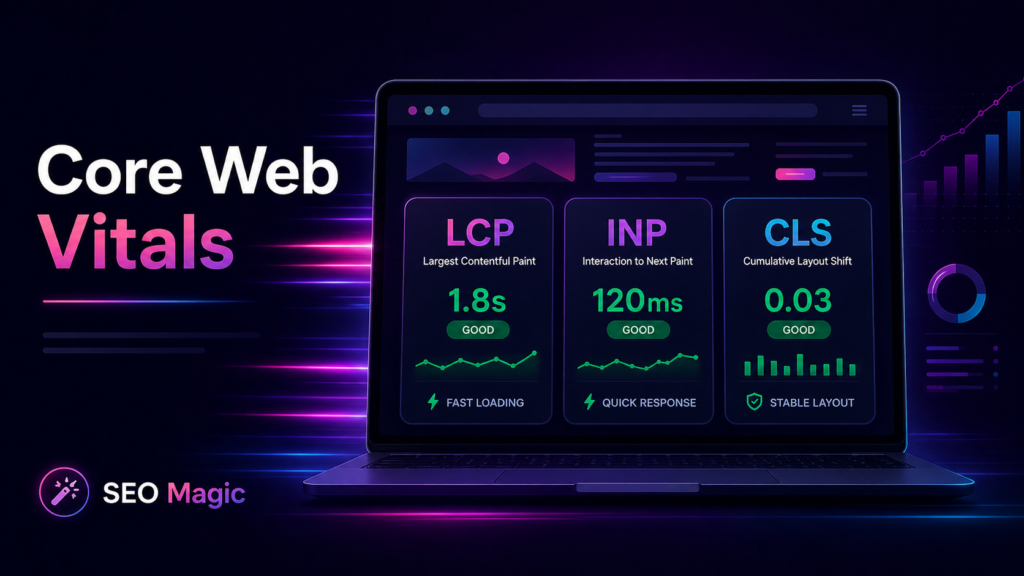
A good LCP should happen within 2.5 seconds, a good INP should be 200 milliseconds or less, and a good CLS should be 0.1 or less.
In simple words: your website should load fast, react quickly, and avoid annoying jumps while the page is opening.
1. Start With a Speed Test
Before changing anything, measure your current performance. Tools like Google PageSpeed Insights, Search Console, GTmetrix, and Lighthouse can help you understand where your site is slow.
For SEO, mobile performance should be a priority. Google uses mobile-first indexing, which means the mobile version of your site plays a major role in how Google understands and evaluates your pages. Seobility also recommends focusing on mobile speed, LCP, INP, and Core Web Vitals before starting optimization work.
2. Use Page Caching
WordPress websites are dynamic. Every time someone visits a page, WordPress may need to load PHP, query the database, process plugins, and generate the final HTML.
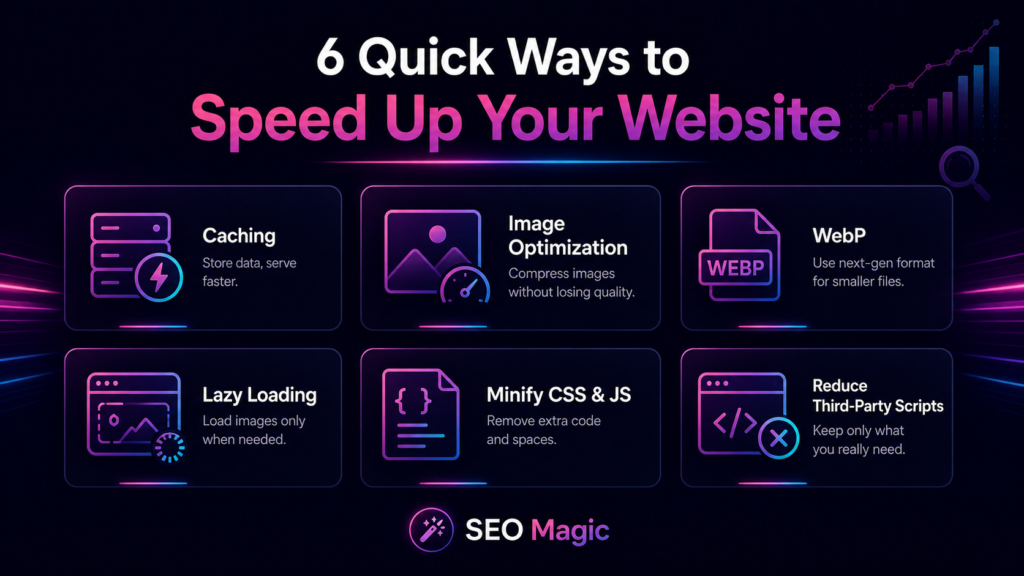
Page caching solves part of this problem by saving a ready-made version of your page. Instead of building the page from scratch every time, the server can deliver the cached version much faster.
For many WordPress sites, a good caching plugin can make a visible difference.
3. Optimize Your Images
Images are often one of the biggest reasons a website loads slowly. Large banners, product photos, blog images, and decorative graphics can easily add unnecessary weight.
Before uploading images, resize them to the real size you need. Then compress them to reduce file size without destroying quality.
For WordPress sites, image optimization plugins can help automate this process.
4. Use Modern Image Formats Like WebP
WebP is a modern image format designed for the web. It can often reduce image file size while keeping good visual quality.
If your site uses many JPG or PNG files, converting them to WebP can help reduce page weight and improve loading speed.
This is especially useful for blogs, WooCommerce stores, portfolios, and landing pages with many visuals.
5. Enable Lazy Loading
Lazy loading means images and other media files are loaded only when they are needed. For example, an image far down the page does not need to load immediately when the visitor first lands on the page.
This can improve the initial loading experience, especially on long pages.
WordPress already includes native lazy loading for many images, but depending on your theme, plugins, and layout, it is still worth checking that it works correctly.
6. Compress Your Website Files
HTML, CSS, JavaScript, SVG, and other text-based files can usually be compressed before they are sent from the server to the browser.
GZIP or Brotli compression can reduce the amount of data transferred, helping pages load faster.
Many hosting providers offer compression settings directly from the control panel. Some performance plugins can also help detect whether compression is active.
7. Minify CSS, JavaScript, and HTML
Minification removes unnecessary spaces, line breaks, comments, and extra characters from your code.
This does not change what the code does, but it can reduce file size. Smaller files usually download faster.
However, minification should always be tested carefully. Some themes or plugins may break if JavaScript or CSS is combined or minified too aggressively.
8. Defer Non-Critical JavaScript
JavaScript can block the browser from rendering the page. This means users may have to wait longer before they see or interact with your content.
Deferring non-critical JavaScript allows the most important content to load first.
This is especially important for sites using sliders, tracking scripts, popups, chat widgets, analytics tools, ads, or heavy visual effects.
9. Reduce Unnecessary Third-Party Scripts
Many websites load scripts from external services, such as analytics tools, advertising platforms, social media pixels, embedded videos, maps, chat widgets, email marketing tools, and font libraries.
Some of these scripts are necessary. Others may be old, unused, or not worth the performance cost.
Review your site and ask:
Do we really need this script?
If not, remove it. If yes, load it only where it is needed.
10. Optimize Fonts
Fonts can affect speed more than many people expect. Loading too many font families, weights, and external font files can slow down the page.
To improve performance:
- Use only the font weights you really need.
- Avoid loading too many font families.
- Consider hosting fonts locally.
- Preload important font files when appropriate.
A clean typography system is usually better for both design and speed.
11. Fix Server and PHP Errors
A site can look normal on the front end while still generating errors in the background. Repeated PHP warnings, plugin conflicts, failed requests, and server errors can waste resources and hurt performance.
Check your hosting error logs and WordPress debug logs when needed.
Fixing hidden technical errors can improve both stability and speed.
12. Keep WordPress Lean
WordPress gives you freedom, but that freedom can turn into clutter.
Too many plugins, outdated themes, unused page builder elements, oversized media files, and unnecessary integrations can slowly make a site heavier.
A good rule is simple:
If your site does not use it, remove it.
A lean WordPress installation is easier to maintain, faster to load, and safer to optimize.
What SEO Magic Can Help You With
Speed optimization is not only about getting a better score. It is about creating a better website.
SEO Magic helps WordPress site owners improve their content, metadata, structure, and SEO workflow with a simpler, more guided approach.
A fast website helps your content work harder. Better titles, descriptions, internal structure, and optimized pages become more effective when users and search engines can access them quickly.
Final Thoughts
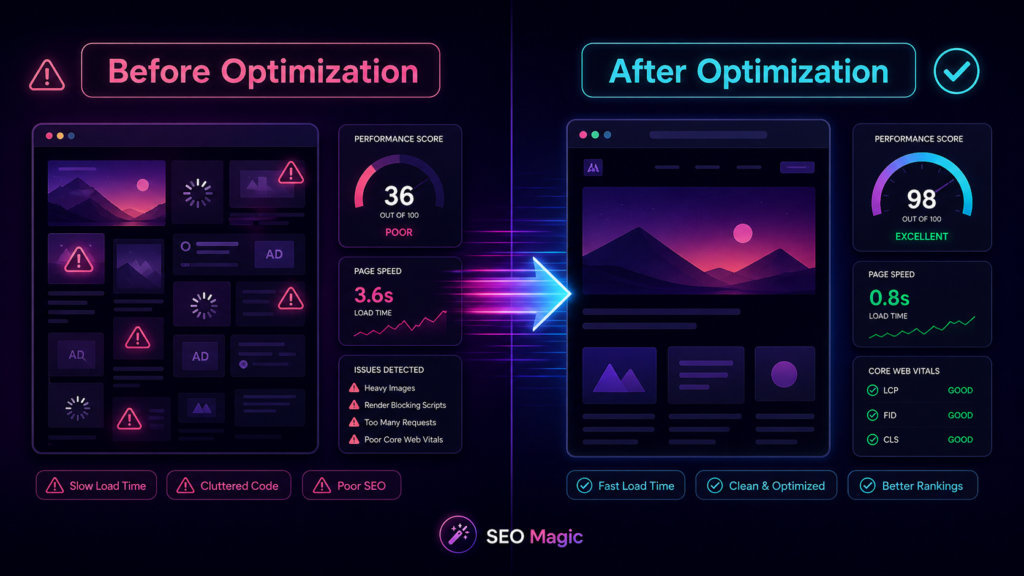
Website speed is no longer optional. It is part of technical SEO, user experience, and content visibility.
You do not need to fix everything in one day. Start with the basics:
- Run a speed test.
- Compress your images.
- Enable caching.
- Remove what you do not use.
- Check your Core Web Vitals.
- Keep improving step by step.
Small speed improvements can create a better experience for visitors, make your site easier to crawl, and support stronger SEO results over time.